
|
|
|
Laboratory Week 2 - Lab Introduction and Apache Installation
Learning Objective:
- Get familiar with the Unix server gryphon.murdoch.edu.au used for practical work in this unit.
- Install, configure and run the Apache web server.
Required Reading:
Lectures: week 1 lecture 2 and week 2 lecture 1.
Unit Reader 1: Web ServersAccess to Software:
In this lab, we will be using the machine
gryphon.murdoch.edu.au, which is running Sun's Solaris operating system. We will access the machine via a ssh sessions.Students may use the puTTY program on Windows for a ssh session. Internal students have access to the program in labs. External students may download the required software and install it on your own machine off campus. Internal students may do the same, but are encouraged to still attend labs for supervision when doing the exercises below.
Instructions:
For all instructions below, replace the number 12345678 with your own 8-digit student number, and the number 15678 with the port number allocated to you (more on this below).
In the examples, the words in teletype bold like this are commands you type in the ssh or telnet sessions. The words in teletype like this are what you see but and should not be typed in.
Logging on to gryphon
Using a ssh or telnet session, connect to the address gryphon.murdoch.edu.au. When prompted for a username and password, use your normal Murdoch student login information. You should have received information on your Murdoch login from IT Services in the University.
Installing the web server
You will compile and build the Apache distribution in your own area on gryphon. There is already a copy of the appropriate Apache distribution in the unit coordinator's account (~hiew). Copy it into your home directory, unzip and untar it, then configure the makefiles and make the installation. To do that, type in the following set of commands on gryphon, in the order specified. Remember to replace 12345678 below with your own student number.
[Note that all commands below between one "gryphon:~>" prompt to the next are suppose to be typed in one line. Be aware of this because your browser may show the commands in two lines if there isn't enough space to fit it in one line in your window. Eg: the "./configure --prefix=..." command may be shown in two line, but please make sure the "--" and "prefix=..." are joined without any spaces or breaks in a single line.
Also note that in the second command below "cp ~hiew/apache_1.3.29.tar.gz ." there is a " . " at the end.]gryphon:~> cd
gryphon:~> cp ~hiew/apache_1.3.29.tar.gz .
gryphon:~> gunzip apache_1.3.29.tar.gz
gryphon:~> tar xvf apache_1.3.29.tar
gryphon:~> cd apache_1.3.29
gryphon:~/apache_1.3.29> ./configure --prefix=/home/student/ICT336/12345678/apache
gryphon:~/apache_1.3.29> make
gryphon:~/apache_1.3.29> make installThe purpose of the putting your own directory in the "./configure ..." line is to ensure that the final server you build will operate from your home directory rather than the default /usr/local/apache. The last thing you should see in the whole sequence of commands above is:
+--------------------------------------------------------+
| You now have successfully built and installed the      |
| Apache 1.3 HTTP server. To verify that Apache actually |
| works correctly you now should first check the         |
| (initially created or preserved) configuration files   |
|                                                        |
|   /home/student/ICT336/12345678/apache/conf/httpd.conf
|                                                        |
| and then you should be able to immediately fire up     |
| Apache the first time by running:                      |
|                                                        |
|   /home/student/ICT336/12345678/apache/bin/apachectl start
|                                                        |
| Thanks for using Apache.       The Apache Group        |
|                                http://www.apache.org/  |
+--------------------------------------------------------+
To save space, please delete the Apache distribution files in your directory. We waste too much disk space if all students keep copies of the same files individually. If you encounter problems in the future and needs to reinstall, you can repeat the steps above again.
gryphon:~> /usr/bin/rm -r ~/apache_1.3.29*
gryphon:~> ls
apache
gryphon:~>Configuring the web server
You should now have a the web server ready to run. You now need change the httpd.conf so that your server is configured appropriately for this unit (more on this in this week's lectures, but just follow the instructions for now). To make the changes, you can use the text editor pico. You may also use the more powerful (but less intuitive) vi or emacs if you are familiar with the those editors. Open the httpd.conf file by typing the following commands on gryphon:
cd ~/apache/conf
pico httpd.confThe two major categories of changes that needs to be made are:
- Change the port number from the standard 80 to one unique to you. Check this listing for the port number allocated to you. For most (not all) of you, it will be the number 1 followed by the last 4 digits of your student number. Please stick to your allocated number or we will have mass confusion among all of you when doing your work.
- Change the process control directives so that it starts up a lot less processes than a normal web server. This is because with 100 enrolled students, we will have potentially 100 copies of the web server running at the same time. We need to rationalise processor and memory usage (see week 2's lectures on Apache's process control - you will also do some server process monitoring in next week's lab).
[Note: If you enrolled late and your number is not on the list of port numbers, please contact the unit coordinator. In the meantime, pick any random 5 digit number less than 65535, search the listing using your browser's search facility to ensure it has not already been allocated, and use it until you get a reply from the unit coordinator.]
To make the configuration changes, look at the contents of the file in your text editor. Most of them will be comments starting with "#", but a few of the lines without the "#" will be the actual directives. You need to change the following directives to the values below. In pico, you can search for a string using CTRL-W. Remember to replace 12345678 with your own student number and 5678 with the last 4 digits of your student number. For the ServerAdmin directive, put down your email address. Lastly, remove the "#" comment mark at the beginning of the ServerName directive. So you should have the following directives in your httpd.conf:
MinSpareServers 1
MaxSpareServers 3
StartServers 3
MaxClients 10
Port 15678
ServerAdmin <your email address>
ServerName gryphon.murdoch.edu.au
User 12345678
Group 336For the User directive, replace 12345678 with your gryphon account name. These two directives will make your web server run as the same user and group as your account on gryphon. This is to ensure you will not have permission problems operating the server and having it access the web-site in directories you own. Note that this is only necessary for the sake of this unit, and NOT something you usually do when configuring a working server.
Running the web server
To run the web server, you use the apachectl script in the bin directory of your installation. To start the server, type the command:
~/apache/bin/apachectl start
Accessing the web server and changing the web site
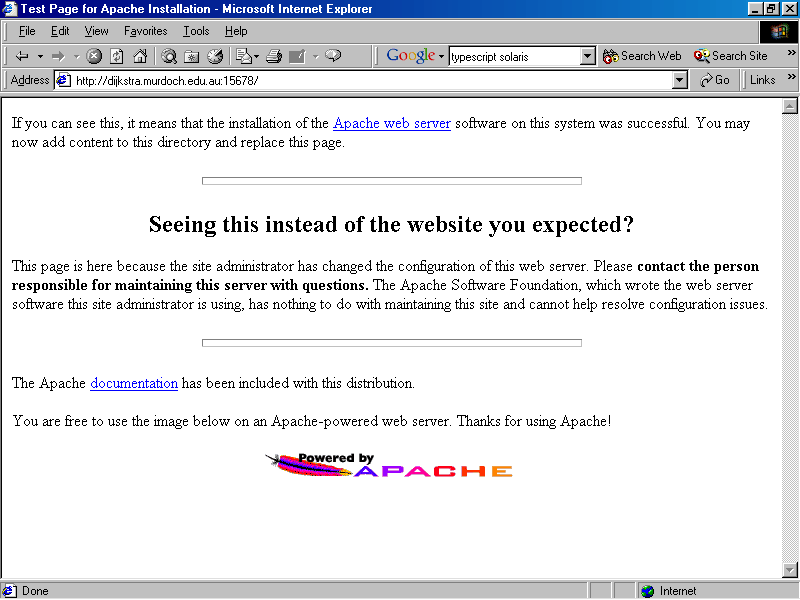
To use your running web server, start up any web browser, and access the URL http://gryphon.murdoch.edu.au:15678/ - again replace 15678 with the port number allocated to you. You will see a page with the starting line "If you can see this, it means that the installation of the Apache web server software on this system was successful..." - here is an example screen dump. You can find this HTML page in the htdocs directory of your installation, as one of the many index.html.* files (exactly which one depends on the language priority of your browser - for you it will probably be index.html.en for English).
To change the contents of the web site served by your web server, just make changes to the htdocs directory in your apache directory. For example, if you put a index.html in there, that will become the default HTML file that any browser will get from the URL http://gryphon.murdoch.edu.au:15678/. If you put a mypage.html in there, then the URL is http://gryphon.murdoch.edu.au:15678/mypage.html. You may also put sub-directories in the htdocs directory.
You can change the file and directory contents of the htdocs directory by using an secure FTP (sFTP) client to access gryphon, or directly using a text editor to create files on the command line on gryphon.
As a note, there are ways of aliasing files and directories in Apache, so sometimes the available URLs do not completely conform to the directory structure of the htdocs directory. Refer to the Alias and ScriptAlias directives in the apache manual (see Manuals below), or look at the httpd.conf for examples.
Stopping and restarting the web server
To stop the server, use the apachectl script again:
~/apache/bin/apachectl stop
FROM NOW ON, YOU SHOULD STOP THE SERVER AT THE END OF EVERY LAB SESSION (WHETHER ON CAMPUS OR NOT). If you do not, we will end up with a very large number of servers running taking up memory space for nothing. We face the possibility of gryphon being unusable and requiring clean-up by the system administrator.
In doing your assignments, you will be making changes to configuration files like httpd.conf. The server reads the configuaration files when it starts. So remember that none of the changes will take effect until you restart the server. To restart the server (ie. to stop it and then start it), you can issue the two commands above, or just:
~/apache/bin/apachectl restart
Manuals
The standard Apache online manuals is found in the directory htdocs/manual/ in your installation directory. This means you can access the pages using a web browser by accessing the URL http://gryphon.murdoch.edu.au:15678/manual/. It is the same as the official ones at http://httpd.apache.org/docs/.
Hints for Unix shell novices
A few useful hints about Unix and the default shell you are using on gryphon:
- Use the up and down arrow keys to go through the list of previous commands.
- Press the tab key to automatically complete a partially typed command name or file name. The shell will complete the commands based on your path, and files based on what is in your current directory. This makes typing long command and file names easy. Eg. in one of the command "gunzip apache_1.3.27.tar.gz" you can just type "gunzip apa" and then press tab.
- A few useful symbols used in filenames:
- ~ means your home directory (so ~/.cshrc means the .cshrc file in your home directory)
- ~12345678 means the home directory for user 12345678
- . means the current directory (so ./configure means the configure script in the current directory)
- .. means the directory above the current one
Exercises:
None this week, except completing the above instructions.
Assessable Tasks:
None this week.
Note:
The purpose of having each one of you have your own installation is so that you can try different things. DO NOT BE AFRAID TO EXPERIMENT WITH DIFFERENT SET-UPS AND CONFIGURATIONS,or to move and change files. In the worse case, you can delete you whole apache directory and do the install again - it takes less than 5 minutes once you are familiar with the steps.
The only thing you should be wary of is starting off too many processes. If you think about what you're doing, read the manuals on the configurations you are changing, or consult your tutor, then it shouldn not cause too many problems. Even if you mess up, then learn and move on. These lab exercises are worthless if all you do is following instructions as stated above but do nothing else.
If you have a natural aversion to experimentation, then consult your tutor about enrolment changes to B399 Principles of Origami.
Final Reminder:
Remember to stop your server before logging off!
H.L. Hiew
Unit Coordinator
Document author: H.L.
Hiew, Unit Coordinator
Last Modified: Thursday, 19-Aug-2004 08:44:14 MST
Disclaimer & Copyright
Notice © 2004 Murdoch University
This document is relevant for semester 1, 2004 only